C#NPOI List<T> 轉換成Excel,只需配置DisplayName註解!
阿新 • 來源:網路 • 發佈:2021-05-22
一、引入NPOl
安裝NPOL庫。
二、建立ExcelExportHelper公共類
程式碼如下(示例):
   /// <summary>
   /// List轉Excel
   /// </summary>
    public static class ExcelExportHelper
    {
        public static void RenderToExcel<T>(List<T> datas,string sheetName= "匯出資料",string url= "D:\\Test.xls")
        {
            MemoryStream ms = new MemoryStream();
            IWorkbook workbook = new HSSFWorkbook();
            ISheet sheet = workbook.CreateSheet(sheetName);
            IRow headerRow = sheet.CreateRow(0);

            int rowIndex = 1, piIndex = 0;
            Type type = typeof(T);
            PropertyInfo[] pis = type.GetProperties(BindingFlags.Public | BindingFlags.Instance);
            int pisLen = pis.Length;
            PropertyInfo pi = null;
            string displayName = string.Empty;
            while (piIndex < pisLen)
            {
                pi = pis[piIndex];
                displayName = pi.GetCustomAttribute<DisplayNameAttribute>().DisplayName;
                if (!displayName.Equals(string.Empty))
                {//如果該屬性指定了DisplayName,則輸出
                    try
                    {
                        headerRow.CreateCell(piIndex).SetCellValue(displayName);
                    }
                    catch (Exception)
                    {
                        headerRow.CreateCell(piIndex).SetCellValue("");
                    }
                }
                piIndex++;
            }
            foreach (T data in datas)
            {
                piIndex = 0;
                IRow dataRow = sheet.CreateRow(rowIndex);
                while (piIndex < pisLen)
                {
                    pi = pis[piIndex];
                    try
                    {
                        if (pi?.GetValue(data, null)?.ToString() != null)
                        {
                            dataRow.CreateCell(piIndex).SetCellValue(pi?.GetValue(data, null).ToString());
                        }
                        else
                        {
                            dataRow.CreateCell(piIndex).SetCellValue("");
                        }
                    }
                    catch (Exception)
                    {
                        dataRow.CreateCell(piIndex).SetCellValue("");
                    }
                    piIndex++;
                }
                rowIndex++;
            }
            workbook.Write(ms);
            FileStream dumpFile = new FileStream(url, FileMode.Create, FileAccess.ReadWrite);
            ms.WriteTo(dumpFile);
            ms.Flush();
            ms.Position = 0;
            dumpFile.Close();
            dumpFile.Dispose();
        }
    }
1.建立TestItem實體
程式碼如下(示例):
    public class TestItem
    {
        [DisplayName("名字")]
        public string Name { get; set; }
        [DisplayName("唯一鍵")]
        public string Id { get; set; }
        [DisplayName("資料")]
        public string Date { get; set; }
    }
2.呼叫
      List<TestItem> s = new List<TestItem>();
            for (int i = 0; i < 10; i++)
            {
                s.Add(new TestItem()
                {
                    Name = "彭希煒"+i,
                   Id = i.ToString(),
                    Date = "1"+i
                });
            }
            ExcelExportHelper.RenderToExcel<TestItem>(s,url:"D:\\Test.xls");
注意 傳入的Excel檔案一定要存在,並且要有讀寫許可權,可以右鍵檔案屬性->安全->編輯->新增一個Everyone使用者許可權全開應用就ok了。
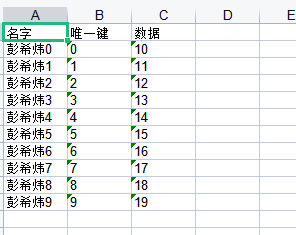
3.結果